
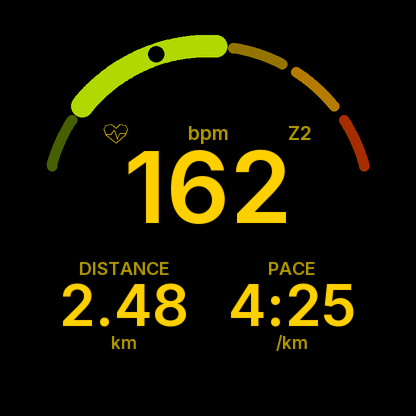
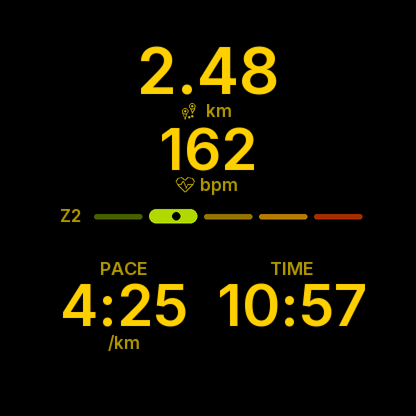
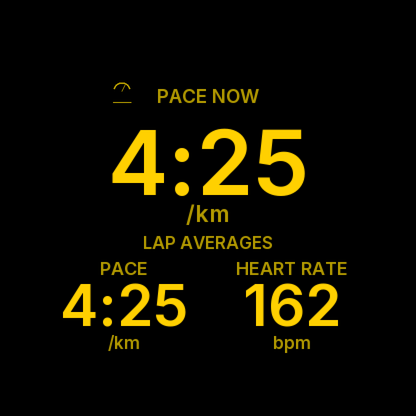
On an easy run, give heart rate and its zone the most space. On a long run, bring distance and time to the fore. For intervals and 5K runs, put current pace next to average lap pace. Each screen helps you answer a different question while you run.
Start with one data screen
Add a separate data screen in your Run activity settings. Keep your usual screen and try one of the setups below on the next page. On the epix (Gen 2), hold MENU, open Activities & Apps, select Run and open its settings. In Data Screens, you can add a page, choose a layout and assign fields. Menu names may vary by model. Garmin manual for data screens
| Run | Start with | Add alongside |
|---|---|---|
| Easy run | Current heart rate and zone | Distance or pace |
| Long run | Distance or activity time | The other reading and heart rate |
| 5K or intervals | Average pace for the current lap | Current pace and lap time for timed intervals |
You can build these setups using the built-in fields on your watch. ORBIT also offers three standalone data fields on Connect IQ: COMMAND, RHYTHM and ATTACK. RHYTHM is free. COMMAND and ATTACK cost USD 1.99 each. Garmin shows the local price in the store.
Easy run. How hard am I working?
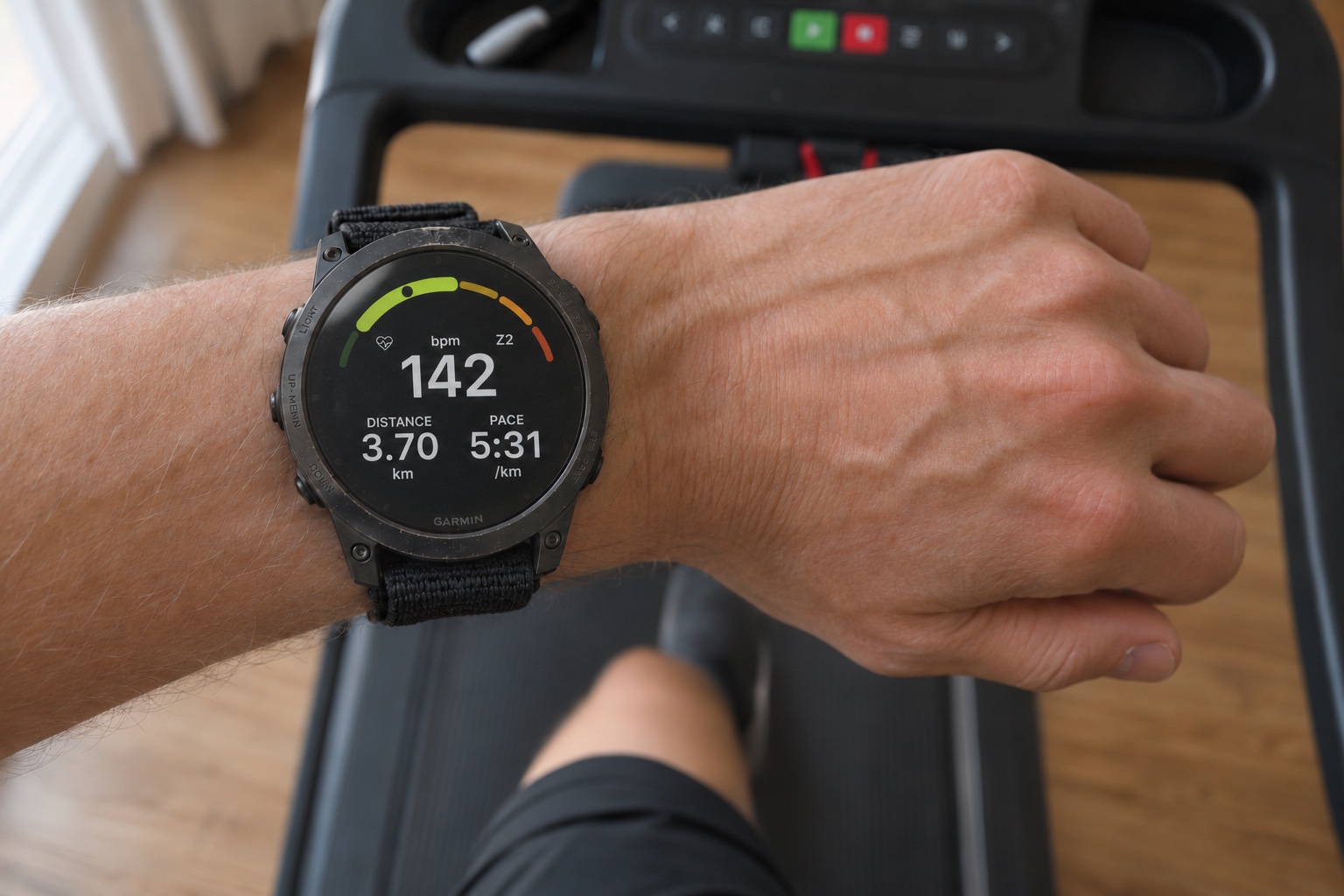
COMMAND puts current heart rate front and center, with a zone arc above it. The active section is thicker and brighter, and its zone number appears alongside. Distance and pace sit below. COMMAND uses the heart rate zones from your Garmin running profile, so check the thresholds saved on your watch before you use them. COMMAND field map
Long run. How far have I gone?
RHYTHM gives distance the most room. It also shows heart rate, pace and the activity timer. On an out-and-back where you turn at 5 km, you only need the top number. For a 60-minute run, put time at the top and keep distance in a smaller field. You can turn off any reading you do not use. RHYTHM field map
Intervals and 5K runs. How is this kilometer going?
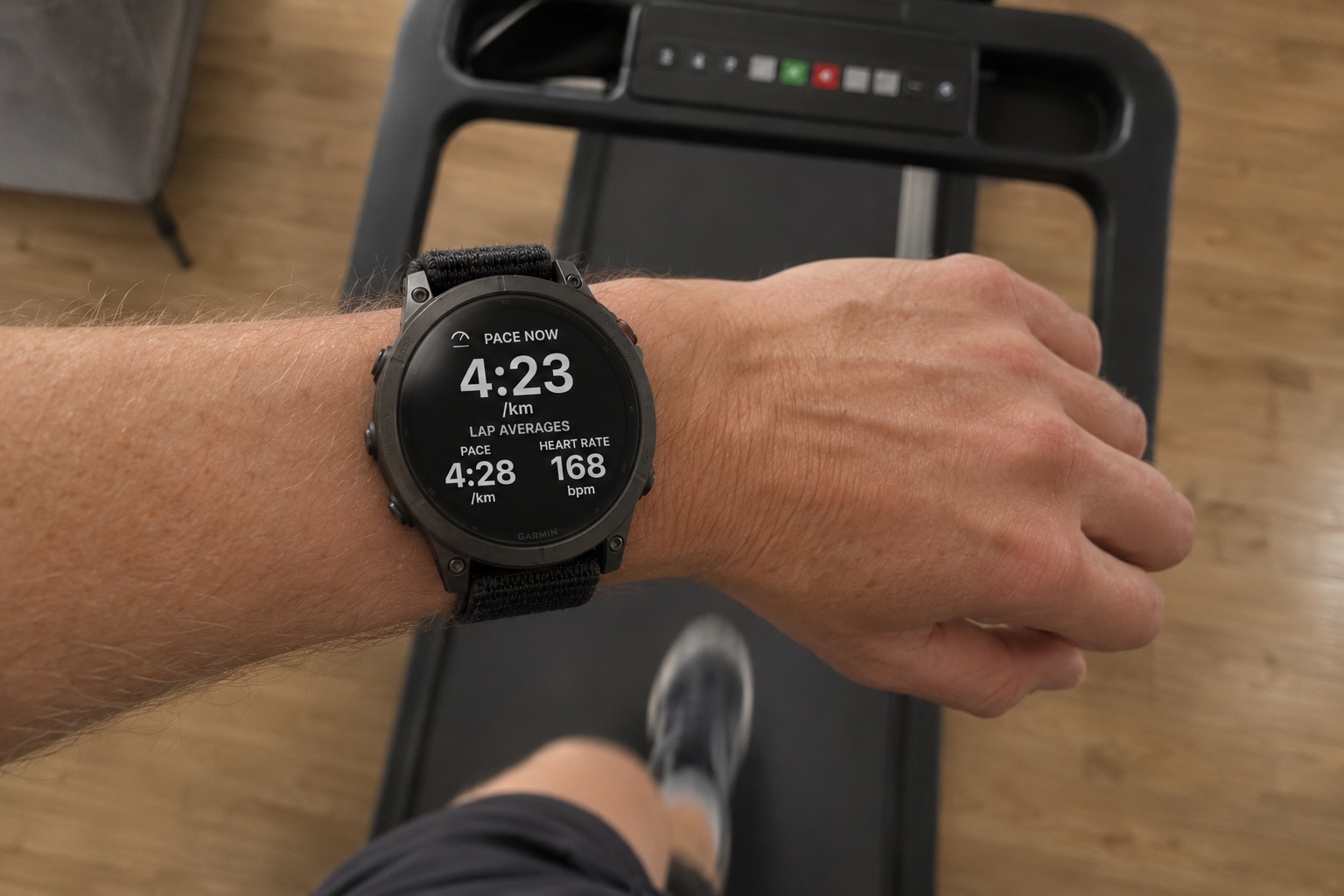
ATTACK shows current pace in large digits. The default layout puts average pace and average heart rate for the current lap underneath. Garmin has a separate field called Last Lap Pace for the lap you just finished. Use Lap Pace for the kilometer you are running now. Garmin’s pace field definitions
Say your target is 5:00/km. Halfway through the first kilometer, you see 4:45/km for current pace and 5:02/km for average lap pace. You are running faster than planned in that moment, but your average is still close to target. If both readings stay well ahead of target for a while, you have a better reason to ease off. The average resets when you start the next lap. Give it a moment to build up in the first few meters.
Set Auto Lap to every kilometer or mark intervals manually to follow successive laps. ATTACK calculates averages from the readings it receives during the lap. If you add the field mid-lap, the averages become available from the next lap. An asterisk next to average heart rate means some readings were missing. Auto Lap in the Garmin manual · ATTACK field map · Connect IQ listing
How to add an ORBIT field to your Garmin
- Install the field you want on a compatible Garmin: COMMAND, RHYTHM and ATTACK.
- In the Run activity settings, add a separate data screen with a one-field layout. Open the Connect IQ category and choose the ORBIT field you installed.
- To change the readings, open that field’s settings in the Connect IQ phone app and save them before the run. ORBIT field settings map
What to check if you see one number or dashes
- You see only a large pace or heart rate reading. Check the number of fields on the Garmin screen. The full layout appears when it is the only field on that page.
- COMMAND shows heart rate without the zone arc. Turn on the zone gauge and make sure the main field is set to current heart rate. Average lap heart rate is a separate reading.
- You see dashes for the lap average. Start the activity with the field already installed. If it started collecting data mid-lap, wait for the next lap or mark a new interval with the lap button. ATTACK on Connect IQ
ORBIT data fields appear on activity screens. When the run ends, your regular watch face returns. Check the listing for your chosen field to confirm compatible watches.